first of all, I am using cre1.6.0.p11 on a Debian 10 system.
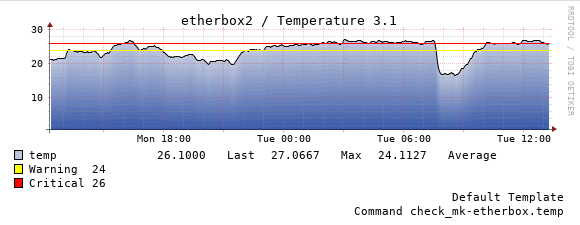
im trying to change the resolution in a mail notification that shows the room temperature of our server rooms.
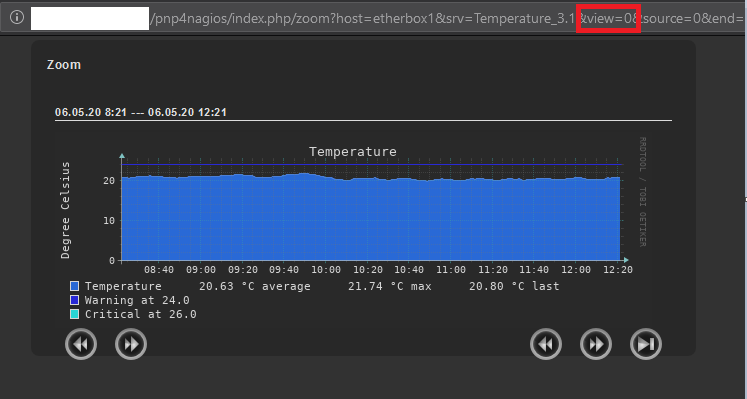
We need a higher resolution of the following graph:
I have found out, that you will need to change the notification script for that.
I found the notification scripts in: /opt/omd/sites/main/share/check_mk/notifications.
Here the mail notification-plugin is linked to another file, which is:
/opt/omd/versions/1.6.0p11.cre/lib/python/cmk/notification_plugins/mail.py
/opt/omd/versions/1.6.0p11.cre/lib/python/cmk/notification_plugins/mail.pyc
I have tried to see for myself, if I can find any hints on how to change the resolution inside the python file.
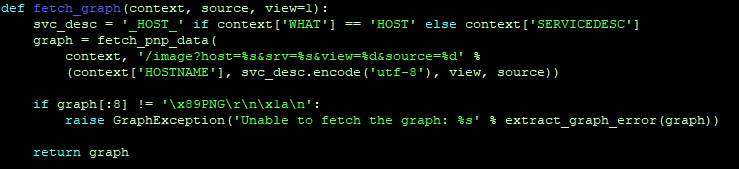
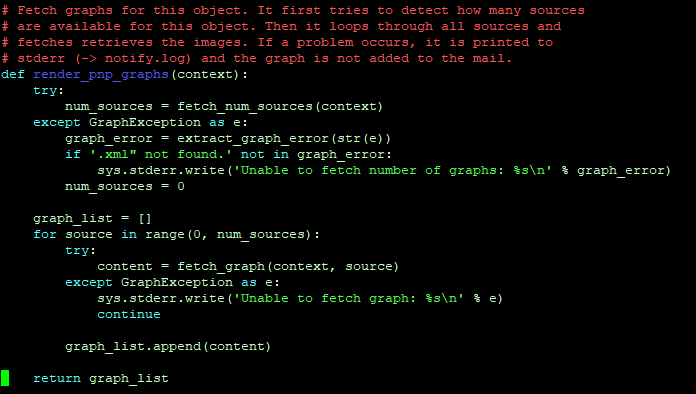
But the only thing I have found are the following entries (for Nagios core):
For PNP4Nagios the parameter “view” inside the URL is setting the timeframe.
You see in the fetch_graph function view is set to 1.
If i remember it correctly 0 is 4 hours, 1 is 24, 2 is 7 days and so on.
You can check this if you look at the URLs inside PNP if you open a graph for a specific time range. There you will also see the view parameter.
thanks a lot!
I think this is exactly what I was looking for.
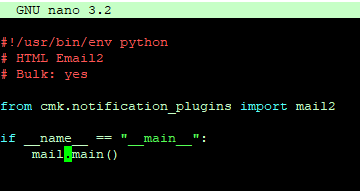
I was trying to test your solution by creating a copy of the notification plugin (called it “mail2”) and the corresponding .py-file (called it “mail2.py”) and then compiled the py-File with the command:
pycompile /opt/omd/versions/1.6.0p11.cre/lib/python/cmk/notification_plugins/mail2.py.
Which outputted the correspondig bytecode-file: mail2.pyc
Then I did an OMD restart
I’m not 100% sure if i missed anything but it looks different than my original HTML Mail.
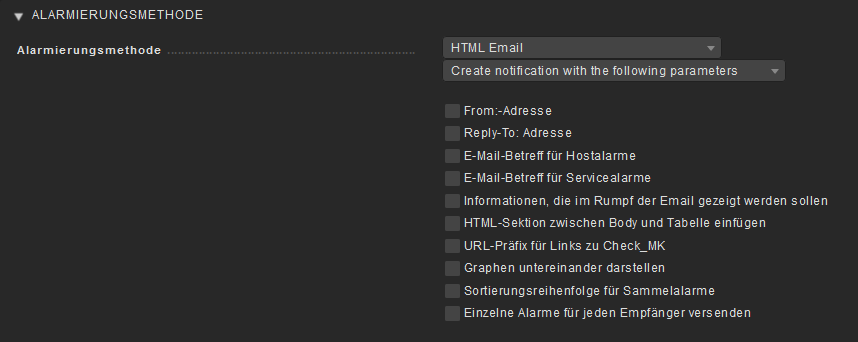
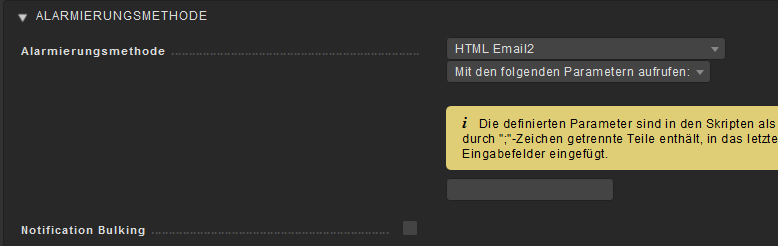
When i try to create a new notification rule with this setting, it doenst show any parameters i could edit:
Sure thing.
I folllowed the instructions on how to duplicate the Mail Plugin (Andreas’ second post).
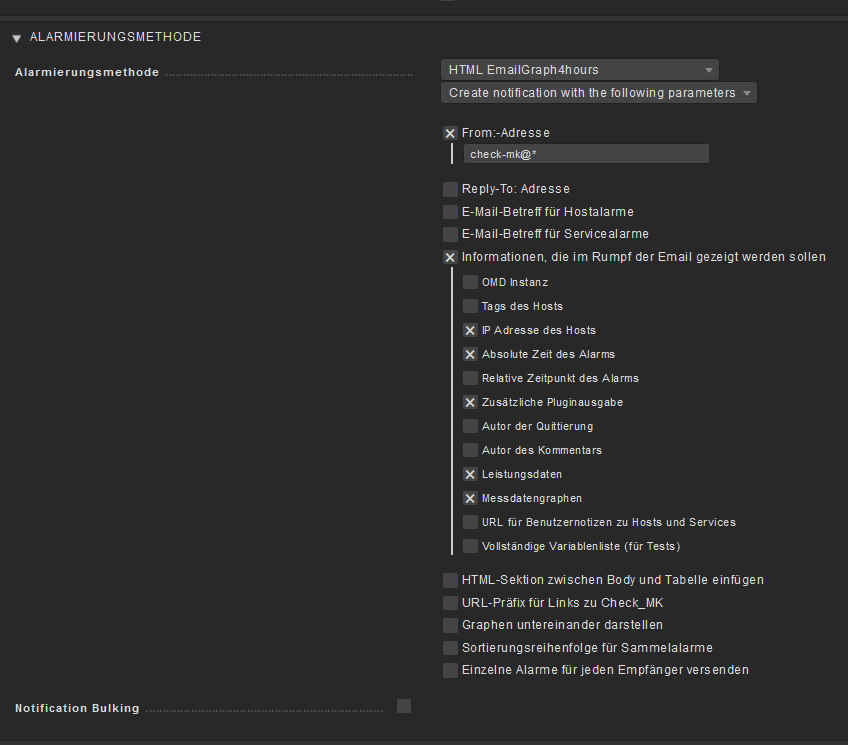
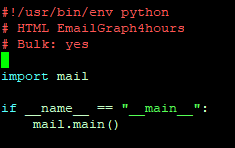
I opened the File /opt/omd/sites/main/local/share/check_mk/notifications/mail with a text editor. Then I changed the second line from HTML Email to HTML EmailGraph4hours.
Then I went to the file thats being imported in by the one mentioned above.
This file is here: /opt/omd/sites/main/local/lib/python/mail.py
In this file you need to change the integer value in the function “fetch_graph”. It’s on line 662
Here i changed the line “def fetch_graph(context, source, view=1):” to “def fetch_graph(context, source, view=0):”