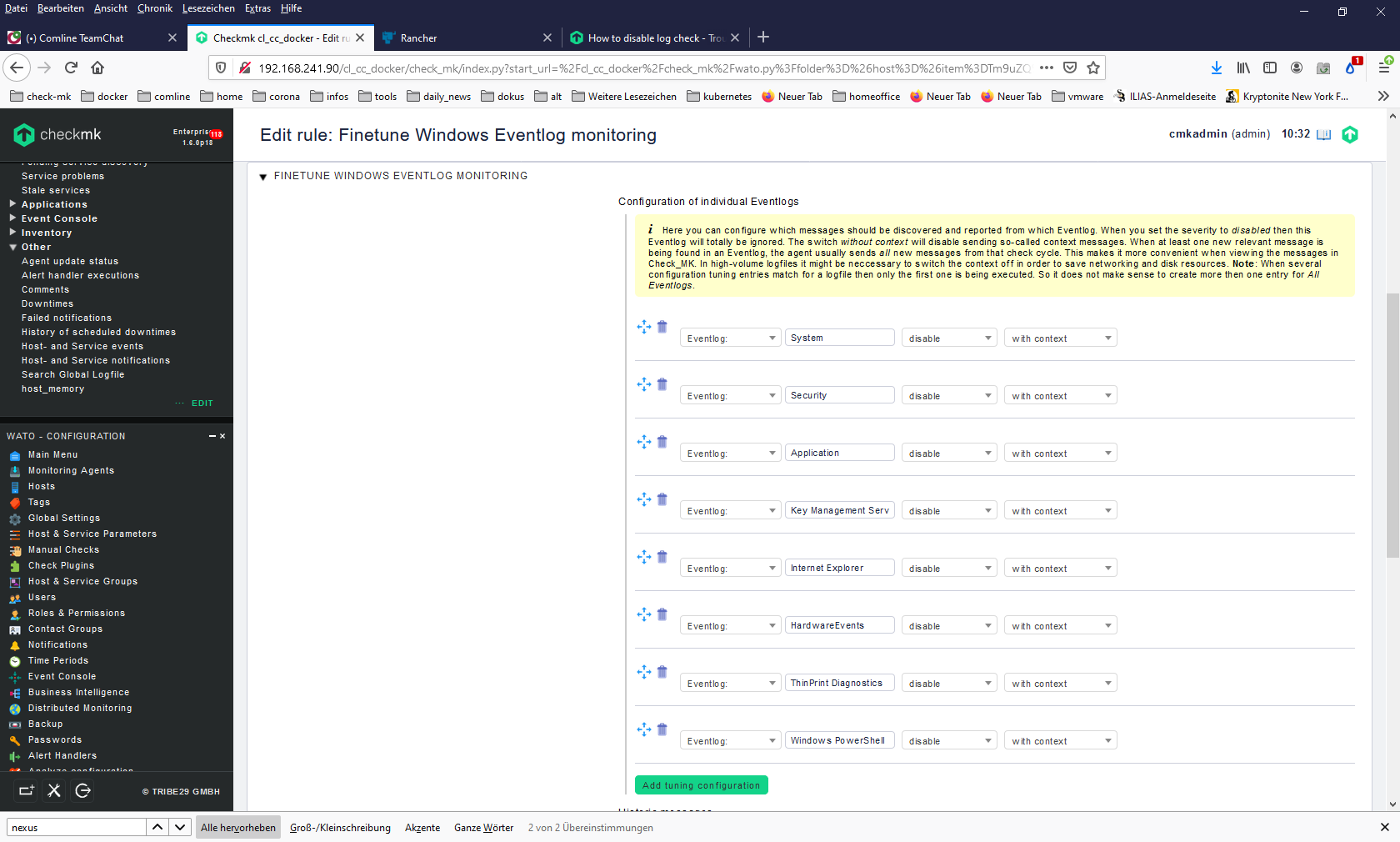
I’d like to disable these warnings to make my log clutter free (FYI: the host is a meeting room PC so not critical).
I already checked the parameters settings but cannot find this kind of warning.
We have some meeting room PC’s for which we want to monitor the used hard disk space. So I’ve created a rule which creates an alert when Filesystem c: is >90% full.
We don’t want to see any other alerts (host is down + log warnings from my first post) for these hosts.
Maybe with this addition information you can make a suggestion? I’ve checked your 1st & 3rd option but it seems to me you have to create a rule for each unwanted alert.
Can you also explain where I can find the 2nd option (ie Disable agent sections)?
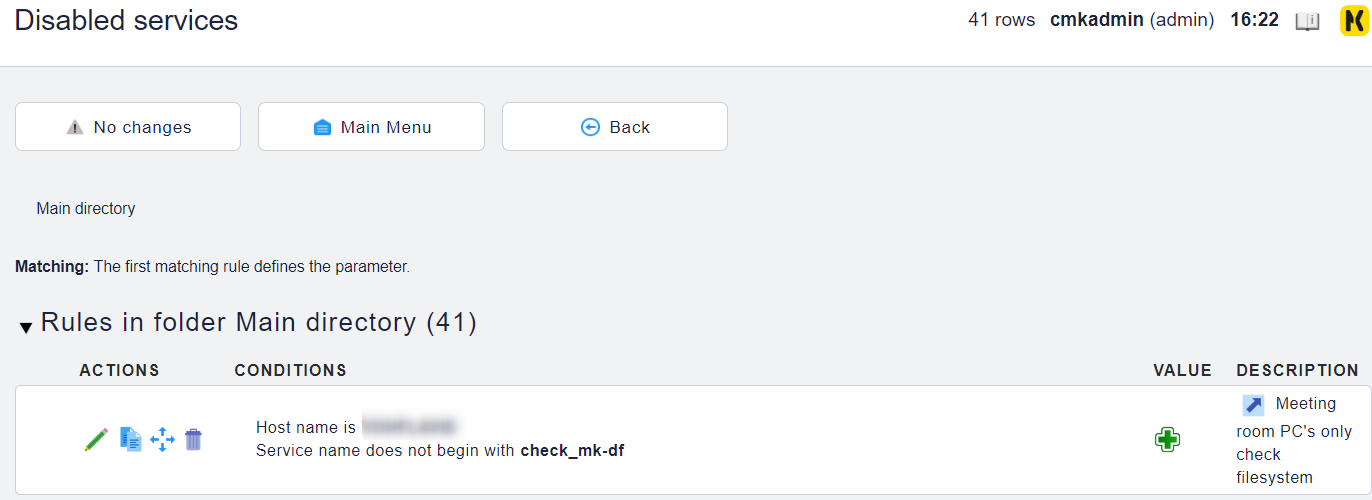
if you only want to monitor the filesystems at these hosts, you can use the “Disabled services” rule with a negated “Service”-filter, so that each service beside ‘filesystem’ gets disabled.
That way you should only be able to see the filesystem-services at these hosts and there only get those notification.
i think you made a mistake in your “Disabled services” rule, because you set a check name as a service filter. “df”-Checks always start with “Filesystem”, so i would recommend “^Filesystem.*” instead of “check_mk-df”
Currently because of your rule, you completly disabled any service at this host and because of that, you got a ping service instead, because each host needs at least one service.
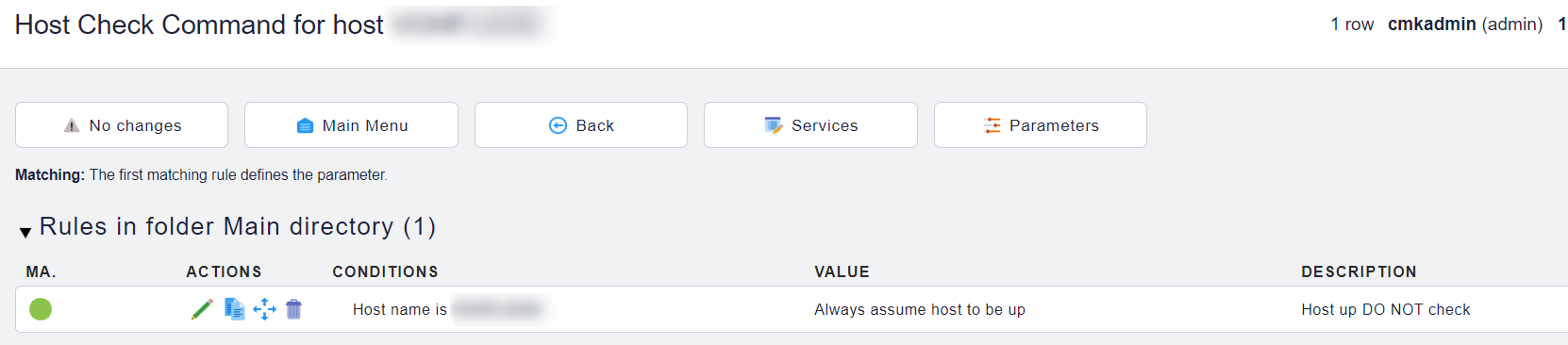
If you have fixed that, you can use the rule “Host Check Command” to “Always assume host to be up”, so that you won’t get any notification related to the host. I don’t know why you want that, but that would work.
The point of this last rule is to eliminate warnings when the computer is shut down. After all, it isn’t a critical server but only a PC in the meeting room.
Take a look in “WATO Configuration” → “Check Plugins” → Search for “df” and click on “Used space and inodes in filesystems”. This is the man-page of the filesystem (df) check. For every check, there is such a man page (normaly), where everything is explained including “Service name”.
Like this; the blank is a space holder for the name of the filesystem check_mk found