I need helping configuring this check: Microsoft 365 - Checkmk Exchange

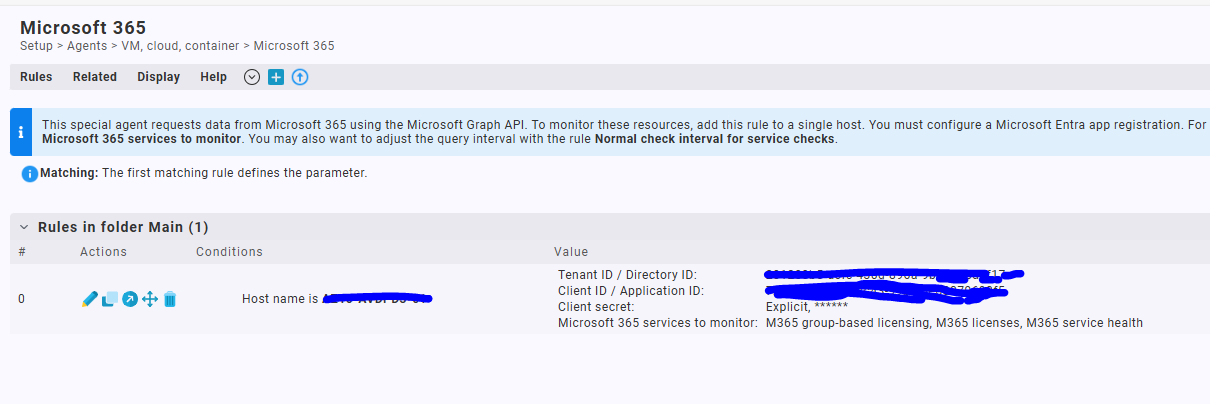
Should I assign the rule to a specific host so the services show?
How can I expect this to look when I switch the rule on?
I need helping configuring this check: Microsoft 365 - Checkmk Exchange
Should I assign the rule to a specific host so the services show?
How can I expect this to look when I switch the rule on?
BTW, now the agent plugins uses Microsoft Graph PowerShell SDK
Ok thanks for this, but we are still on version 2.3.0p34 and it doesn’t answer my question above? Do I need to assign a host to this? I presume so the services will be created against a specific dummy host?
These instructions to upgrade powershell and install .net etc… I presume these are done on the machine hosting/running the Office 365 plugin?
That’s correct.Its an agent plugin.
Ok thanks, but the fundamental question I had was do I need to assign a host to the rule so the services appear under that host?
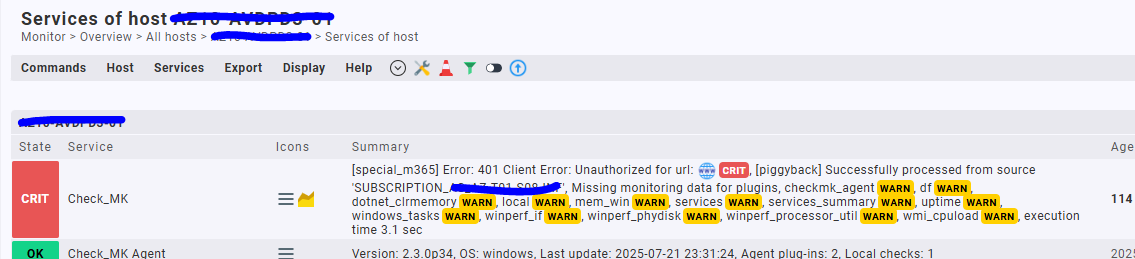
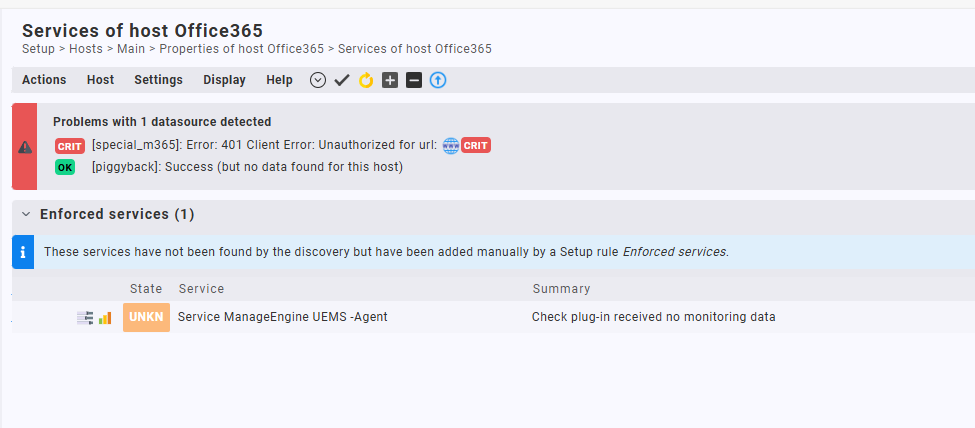
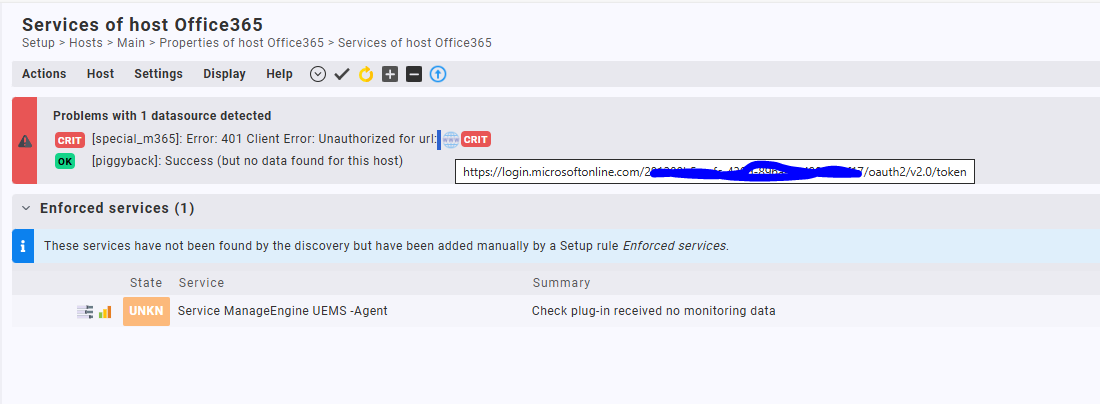
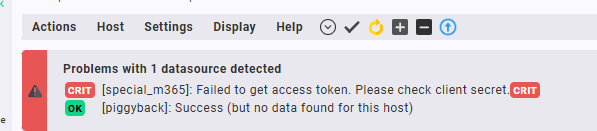
I’ve applied the rule to a host and I get this error:
When I add a host into the rule the agent stops working for that host also it seems and nothing gets monitored on the host.
I don’t know this plugin from exchange but it looks like a special agent which needs to be assigned to a host. If there are connectivity issues/permission issues then try to run the agent on the command line to find more details.
Sorry, I have no idea about this extension.
I guess it’s how extensions work in general from the exchange, there’s no documention that goes with it. I guess there’s no other way apart from using this special agent to monitoring office 365 right.
you can get the call incl. all options for the special agent from “cmk -D <name_of_your_azure_host>” (the one from the screenshot)
regarding documentation for exchange.checkmk.com packages: it’s optional  some devs are very thorough, others not, but I always appreciate anything uploaded, as the code is open and it’s free.
Sometimes you can also click on the Source: Website and it takes you to their project repo. In this case its Github and this is the link: GitHub - CLiX-1/cmk_plugin_microsoft_365: Checkmk Plugin: Microsoft 365 Special Agent
and maybe @CLiX (assuming it is the same user :D) can also help.
Thanks I’ve just followed the instructions in the read me file and tested but I get this:
I was trying to manually run the special agent like this but with no success from the location (/opt/omd/sites/cguk/local/lib/python3/cmk_addons/plugins/m365/libexec/):
./agent_m365 --tenant-id “tenant-id” --app-id "app-id " --app-secret "app-secret " --services-to-monitor “Exchange,SharePoint,Teams”
In Checkmk 2.3, you must assign the Microsoft 365 special agent to a single host that is not used for other special agents (since Checkmk 2.4, you can use multiple special agents on one host).
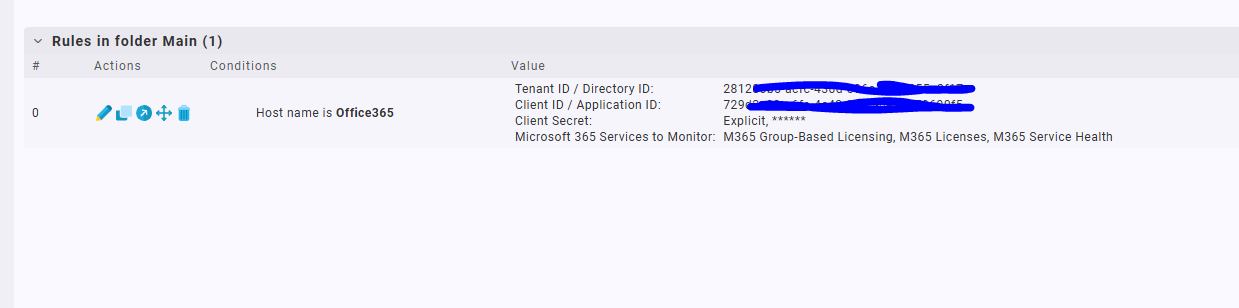
Add a new host and create the Microsoft 365 rule. Under Conditions, select the new host.
You can also follow the steps here: GitHub - CLiX-1/cmk_plugin_microsoft_365: Checkmk Plugin: Microsoft 365 Special Agent
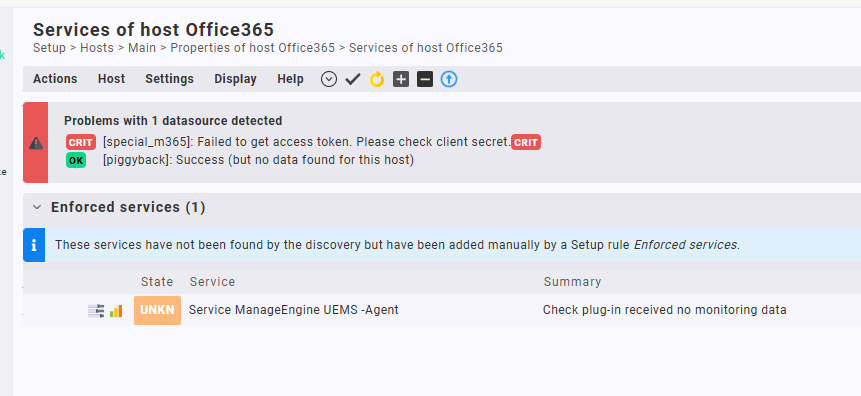
The error “Unauthorized for url…” typically means that you entered the wrong credentials for the API connection, but I would expect a custom message like “Failed to get access token. Please check client secret.”. Do you use version 1.3.1?
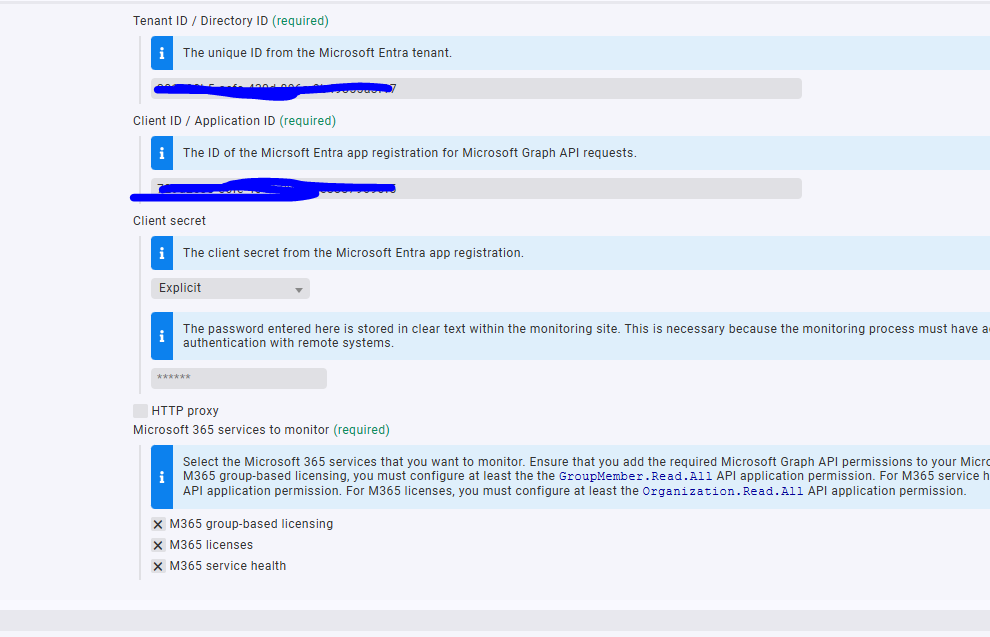
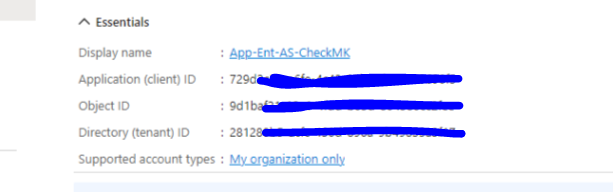
Please double-check the app ID and client secret that you entered in the rule and/or password store. Please also check if your Entra app registration has all the needed API permissions with consent granted.
You can also click on the “Check_MK” service. Maybe we can see more details at which point the error occures.
To execute the special agent manually from the command line, first use for example cmk -Ivv <your host>. This will display the special agent call after “Calling:” Copy it, including all parameters like displayed, and run it from the command line.
But it should display the same error as on the “Check_MK” service details.
Yes I’ve followed your instructions. I created a dummy host and configured it.
Although I am using 1.1.0, so I will try the updated version thanks.
update, now getting a different error, I will double check i’m using the correct client secret.
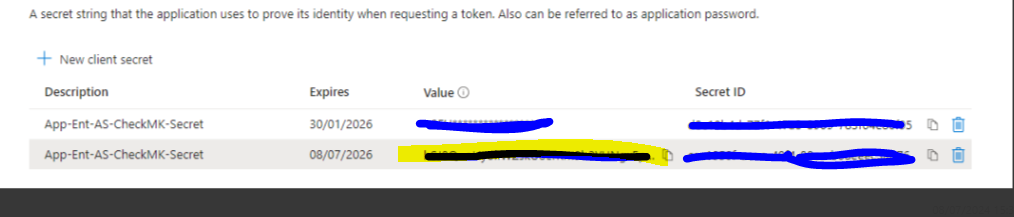
Just to be clear, did you copy the “Value” of the secret from the Entra Portal, not the “Secret ID”?
You can check the sign-in logs for the service principal to see if there was a connection attempt and the resulting error.
On the overview page of your app registration, simply click the link after “Managed application in local directory” (on the right side). Select “Sign-in logs” (Activity) and the “Service principal sign-ins” tab.