Hi everyone,
I am trying to set up a single-sing-on option for CheckMK using Keycloak and I am having some trouble configuring the User attributes since Keycloak is different from Azure.
This is my configuration:
Using SAML tracer I looked at the attribute names and put them into checkmk
Username
GivenName
Email
But I am not sure if this is correct, since an attribute value for Azure looks like this: http://schemas.xmlsoap.org/ws/2005/05/identity/claims/userID
After loging in with Keycloak sso : Authentication failed
the logs show this: GET /***/check_mk/login.py?_connection_id=Keycloak_SAML&_origtarget=index.py&_saml2_user_error=Authentication+failed
Aslong as the/a product supports SAML it should work with CheckMK.
I do not have experience with Keycloak itself, however i think (after looking at an example for mattermost) you want to have Id as user ID attribute.
i would not say error in config, rather that keycloak does not offer the correct attributes required in the assertion.
→ making a successful SAML configuration is a mutual agreement between what the IDP offers as to attributes and what the application requires.
Hope this will point you in the correct direction.
i myself use NetIQ AccessManager as IDP.
If i get the time i will setup a keycloak server, however i do not have CMK-ee, so cannot fully test ( i run raw, and have written a SAML discussion with that version - should be here in the forum )
→ Do be aware that this thread was prior to the point where CMK implemented SAML in the CEE -edition.
Hey @Bela,
im currently also trying to use keycloak for single-sing-on with CheckMK.
Could you maby provide some screenshots of your working configuration, from the SAML authentication screen in CheckMK as well as the client configuration in Keycloak ?
Would be amazing as currently i only get a redirect to Keycloak, which tells me “invalid request”.
Best Max
Hey @Bela,
im currently also trying to use keycloak for single-sing-on with CheckMK.
Could you maby provide some screenshots of your working configuration, from the SAML authentication screen in CheckMK as well as the client configuration in Keycloak ?
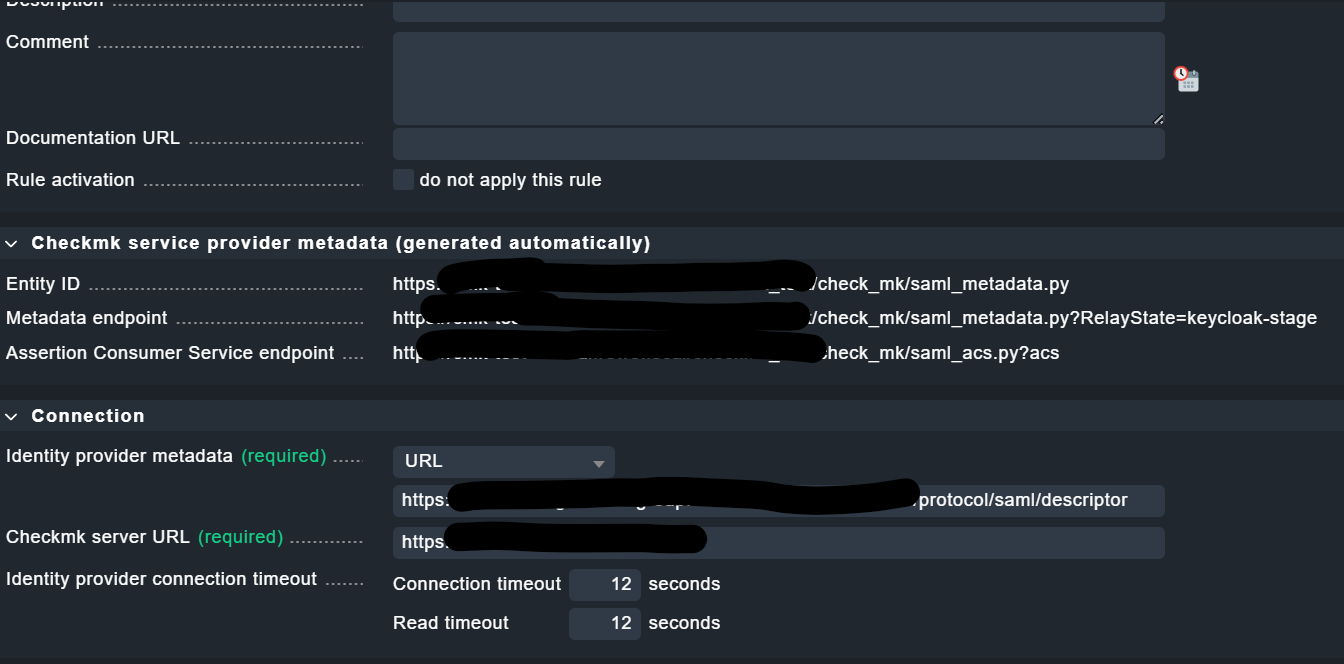
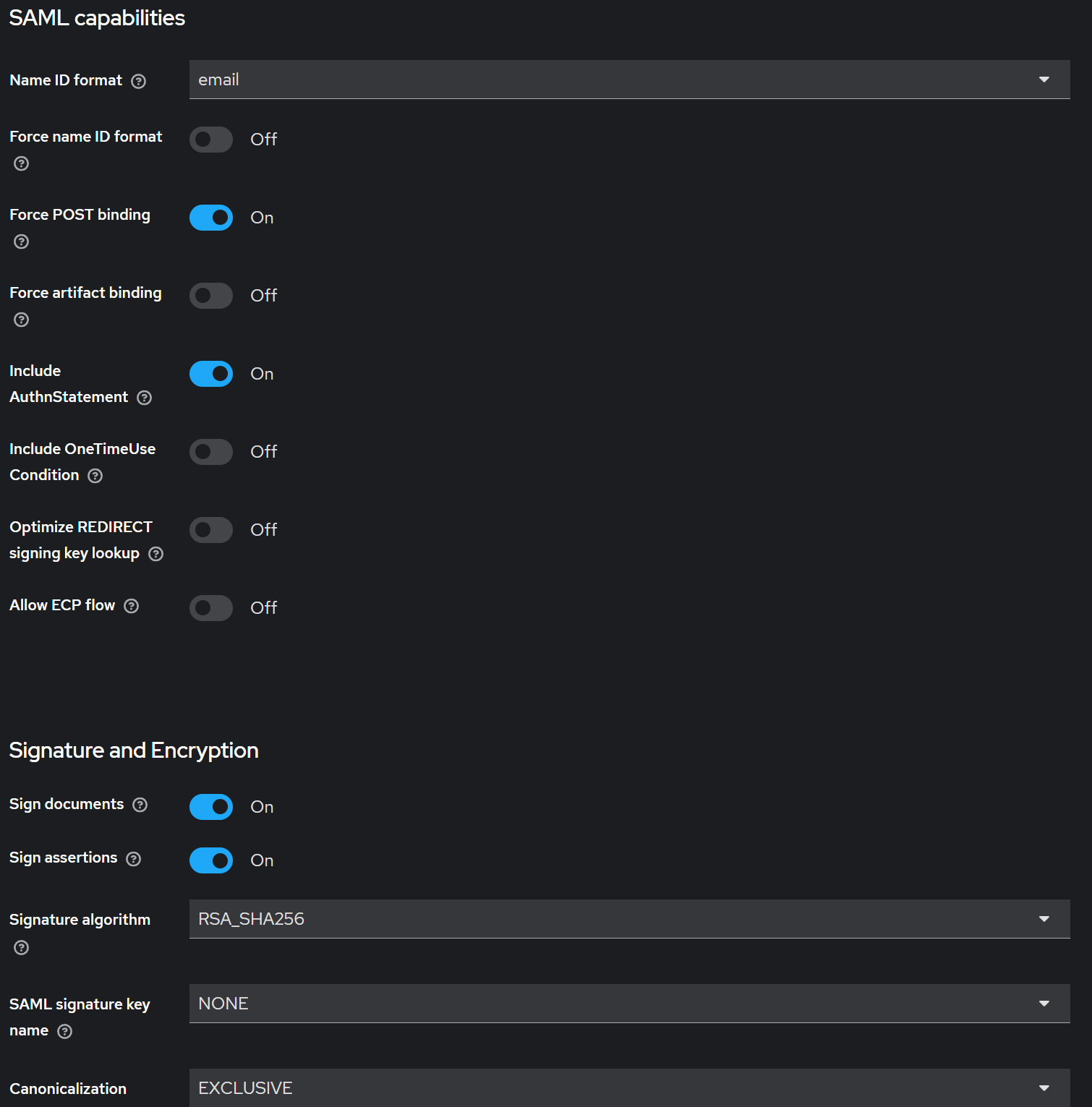
we use SAML authentication with Keycloak in checkmk 2.3 and 2.4 in test/dev environments.
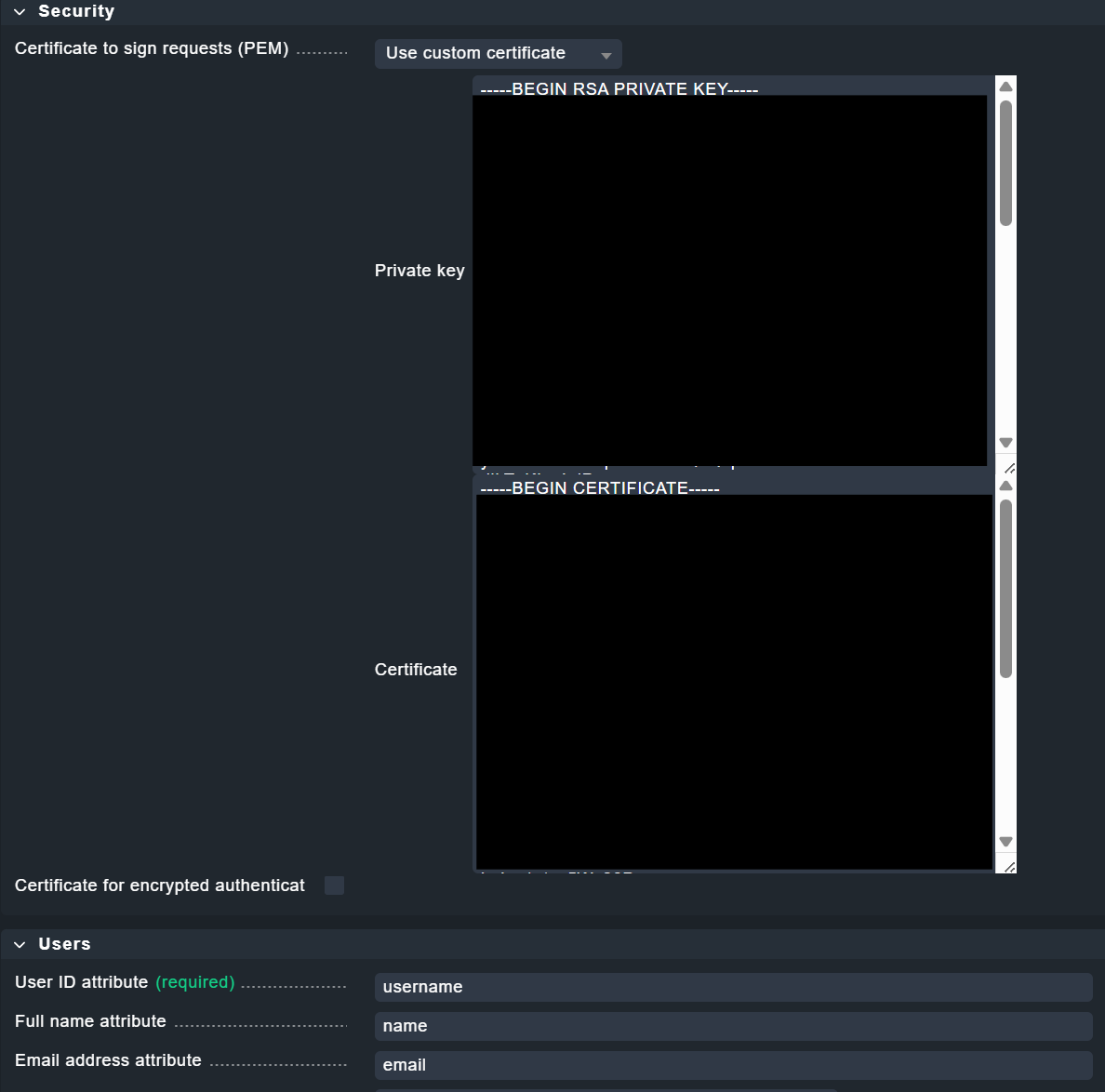
The challenging parts were the certificate and some of the links.
Keycloak Client - Tab Client Scope
We have defined the following attributes, the details depents on our installation, but needs to be the same as defined in the checkmk rule:
username
name
email
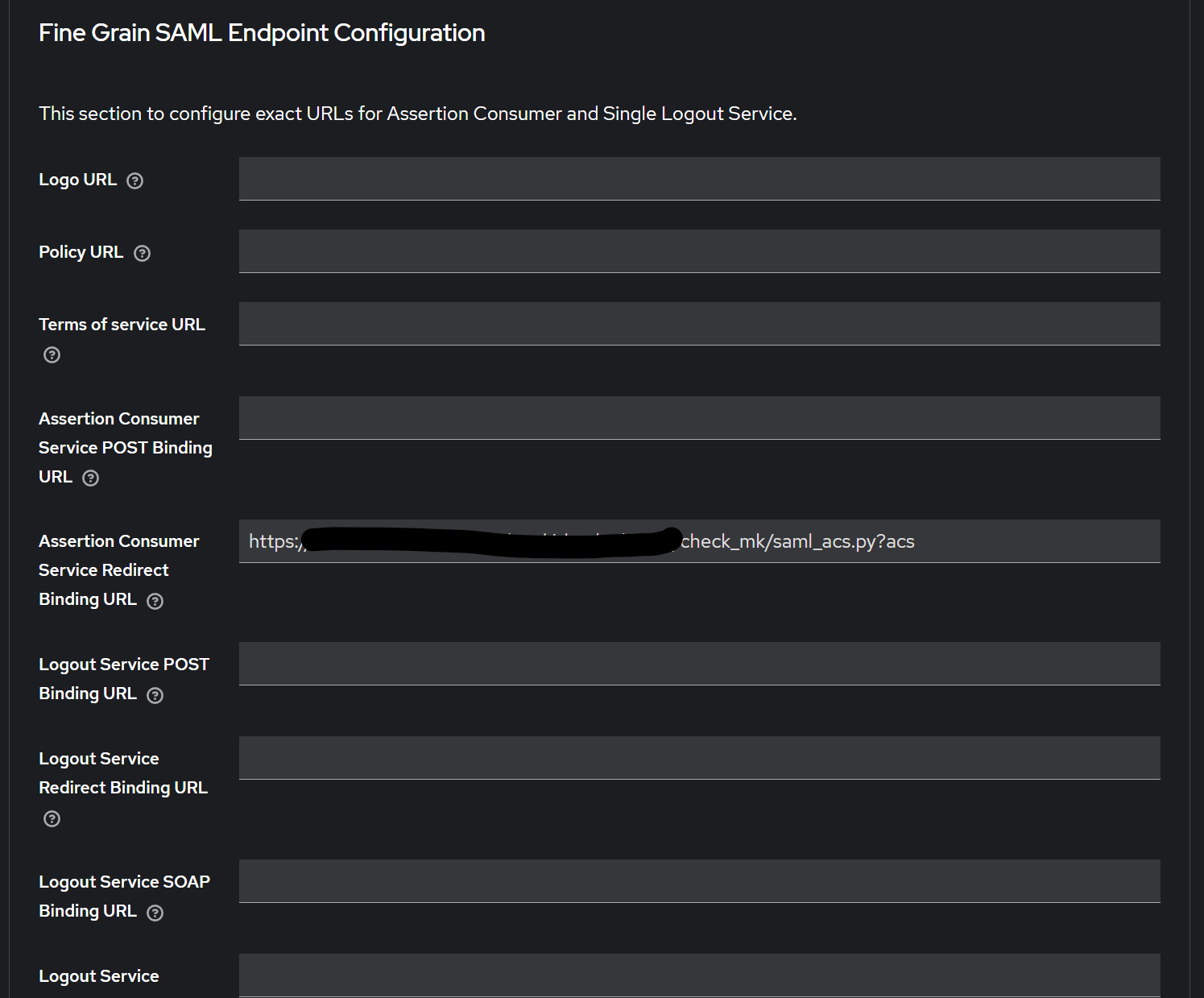
Keycloak Client: Tab Advance
Only “Assertion Consumer Service Redirect Binding URL” is set in this tab
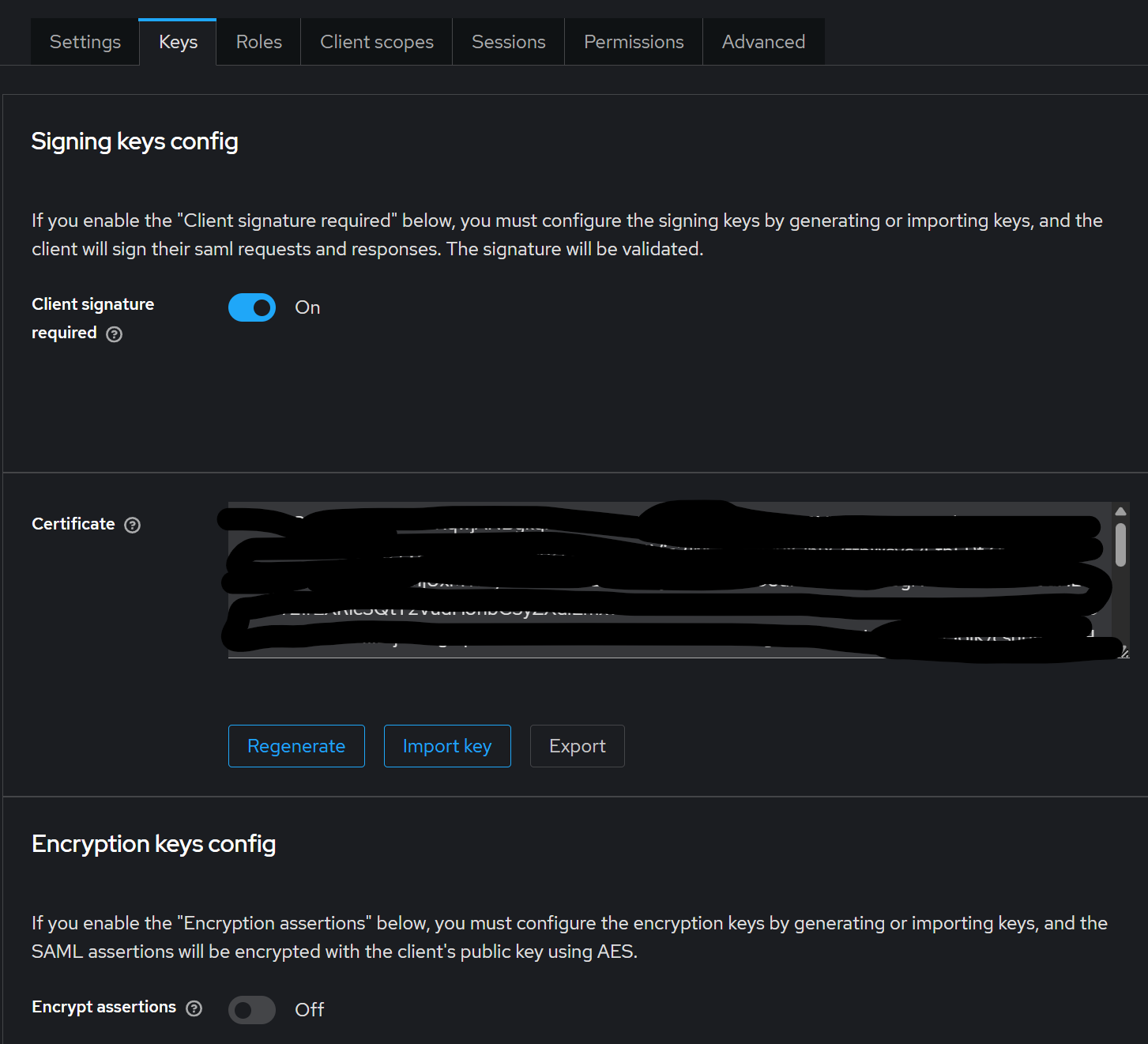
We are using the certificate which is created by Keycloak.
When you click on the Button “Regenerate” a new certifiate is generated:
the private Key will be downloaded automatically
the Certificate is visible in the Keycloak UI
Both certificates needs to be converted in PEM Format, e.g.:
sed -i -e "s/.\{64\}/&\n/g" keycloak-cert.cer
sed -i '/^$/d' keycloak-cert.cer
sed -i -e "s/.\{64\}/&\n/g" keycloak-key.key
sed -i '/^$/d' keycloak-key.key
After this they can be added to checkmk with the following header and footer including a newline at the end:
This topic was automatically closed 365 days after the last reply. New replies are no longer allowed. Contact an admin if you think this should be re-opened.

 )
)