This might be a ‘stupid’ question but I can’t find anything in the videos or documentation on Synthetic Monitoring.
I created the simple good search test but it’s failing in checkmk.
It runs successfully manually etc…
Does there need to be a logged in user to the host where the test is running at all times for this to work properly?
Edit: I’m testing it in headless mode for the browser test.
But in my other test which is a desktop application I presume I MUST have a logged in user that the test runs against in order to always open the application to test, is that right?
I assume the test service is discovered in Checkmk?
What does the HTML log file show? (-> blue icon next to the service)
For pure web tests, no user needs to be logged in to the desktop.
This type of test can run completely headless, even in parallel.
The browser does not open a UI at all then.
But in my other test which is a desktop application I presume I MUST have a logged in user that the test runs against in order to always open the application to test, is that right?
Exactly, if a test is to run on the desktop (e.g., to start an application), then a desktop session must be open. However, this type of test is only possible under Windows.
Well I tried changing headless=True and from firefox to chromium but that still failed.
I’m currently trying to use this option to see if my tests work:
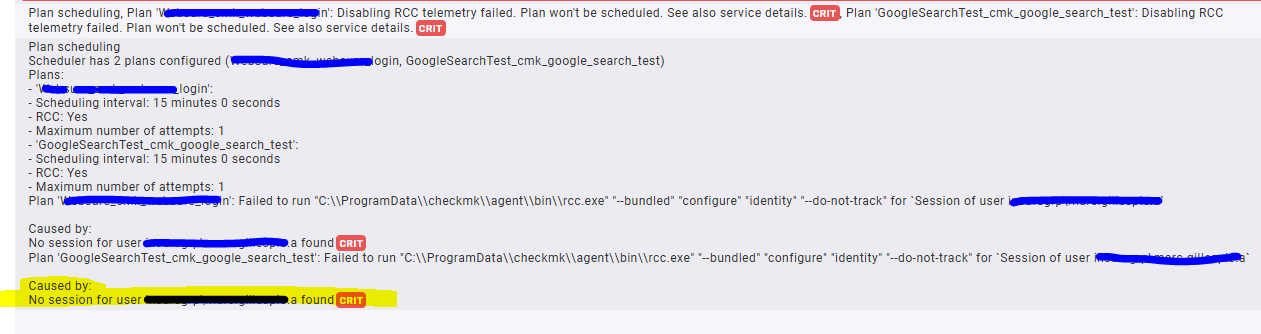
Also now tried the option to run as username, baked an installed the new agent and logged in as that user but it’s still not working and robotscheduler.exe is still running as SYSTEM.
I’m losing faith in checkmk with synthetic monitoring tbh, I’ve yet to get it working by following all the instructions/videos.
headless=True and specifying a username to run the test on the desktop to see something is a contradiction. You never won’t see anything when a web test runs headless.
I am not sure about the message “Not enough memory resources are available to process this command.”, but I suspect that this has nothing to do with Robot Framework, Playwright or Robotmk.
At least Google delivers pages of results on solely this message.
You can try sfc /scannow in an admin CMD; this repairs system files on Windows.
Sounds strange now - but a participant in a recent training was able to solve the problem on his (freshly installed VM) that CMD.exe could not be called. I never understood it, but it worked afterwards Give it a try.
If that does not help, please try to use another Windows VM. Just to rule out n error in the operating system.
I’m losing faith in checkmk with synthetic monitoring tbh,
…what!? We won’t give up that easily! I am happy to help you to get the tests running.
No matter what I try I can’t get the robotscheduler.exe to run as my logged in user even though it’s configured in the robotmk.json file and I’ve tried launching robotscheduler.exe in a task as per that user logged in etc…
I think the issues I’m getting with the synthetic tests is having the logged in user account for them to run under.
No matter what I try I can’t get the robotscheduler.exe to run as my logged in user even though it’s configured in the robotmk.json file and I’ve tried launching robotscheduler.exe in a task as per that user logged in etc…
Which documentation are you currently following? Don’t do this.
My script opens a desktop application, logs in and confirms login. So how can this be ran under the SYSTEM account? Surely it needs to be ran under a logged in user account?
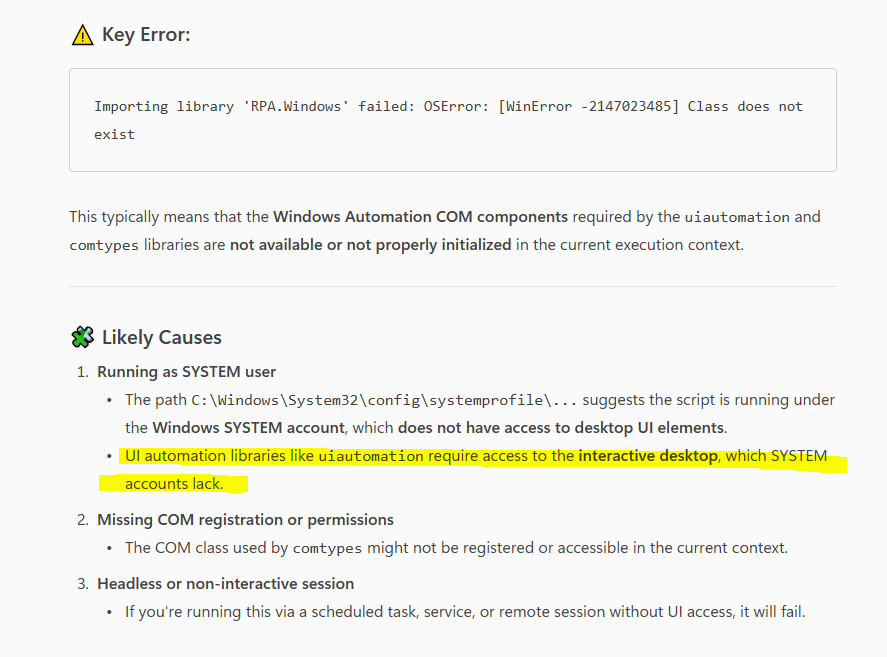
0SError: [WinError -2147023485] Class does not exist
this is another weird error message after Not enough memory resources are available to process this command. ”.
And definitely not related to Robot Framework (even if AI tries to draw a connection…).
There is really something broken in the OS. (See also here).
My script opens a desktop application, logs in and confirms login. So how can this be ran under the SYSTEM account? Surely it needs to be ran under a logged in user account?
Please check out the documentation about the bakery rule of Robotmk.
The scheduler runs under SYSTEM and if you specify the name of a user which is logged in, the scheduler can start specific Robot Framework suites on this desktop session at the same time.
I did this yes the username here doesn’t have the domain in front of it though but when I run whoami it does and that’s what i’ve used in the rule the domain\myusername
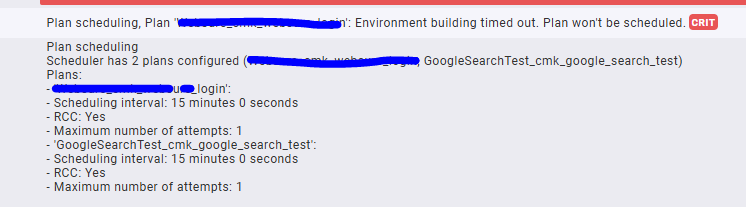
FYI I watched on the screen the cmd windows for the environment building disappearing within the 15 minutes again and this same error for environment building timed out appearing again.
I have and now it’s timing out even though it’s got a good 15 minutes to build them which was plenty before
See my answer to your other post regarding the plan limit:
Just because you mention “minutes to build”:
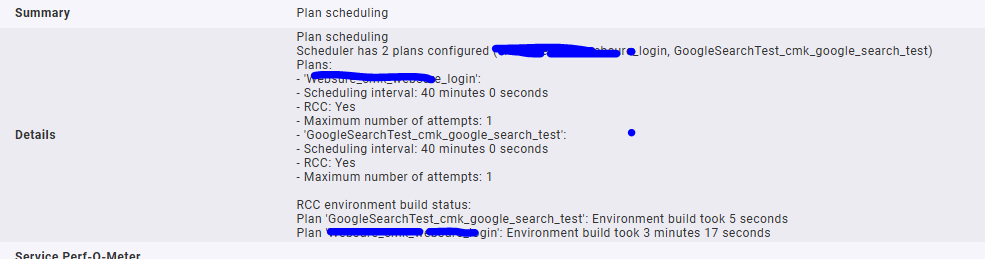
The scheduling interval has nothing to do with the environment creation.
When the scheduler starts, it first ensures that all environments are created.
For each environment, you can define an Environment build timeout (default: 10 min).
After this phase, the scheduler starts the execution phase.
If a re-creation of environments is needed, you need to restart the agent.
Exactly. Its the interval you are setting in the bakery rule for an individual plan group. => 40 mins
Inside of a plan group the plans are executed sequentially (if you have more than 1).
ok now something really strange is happening, i’m seeing the robot scheduler tasks in cmd launching on MY LAPTOP and not the VM I’m remotely connected to.
How is this even possible?



 Give it a try.
 I am happy to help you to get the tests running.