CMK version: RAW 2.2.0p47 OS version: Windows Server 2019
Hello CheckMK folks,
I have a fileserver with multiple disks and one of them (G) has the size of 3,12Tib (Total size being show when I click on the service “Filesystem G:”). 51,36GB are being shown as free on the service page.
I want to be warned, when free space is below 15GB and alerted when it is 10GB. So I created a new rule under “Filesystems (used space and groth)” and selected the following options:
Levels for used/free space
Levels for free space
Absolute
Warning if below → 15000MB
Critical if bwlow → 10000MB
When I active this rule, the service goes directly to “critical” although it should stay green, since there are ~51GB left.
I played around with the numbers and there seems to be a problem with the threshholds I entered.
example1:
Warning if below → 15000MB
Critical if bwlow → 10000MB
Output: Used: 98.39% - 3.07 TiB of 3.12 TiB (warn/crit below 1.99 TiB/1.99 TiB free)
example2:
Warning if below → 2000MB
Critical if bwlow → 1000MB
Output: Used: 98.39% - 3.07 TiB of 3.12 TiB (warn/crit below 1.99 TiB/1.99 TiB free)
example3:
Warning if below → 2MB
Critical if bwlow → 1MB
Output: Used: 98.39% - 3.07 TiB of 3.12 TiB (warn/crit below 1.99 TiB/1.99 TiB free)
No matter what values I set as thresholds - it does not seem to change the result of the check.
I think there are two possible causes worth investigating here.
1. A higher-priority rule is overriding yours
Checkmk goes through all rules in sequence and the first matching rule sets the value — subsequent rules are ignored. Rules positioned higher in the list always have priority over those lower down, and in the case of conflicting rules, a rule lower in the folder structure has priority.
The fact that your thresholds show 1.99 TiB regardless of what you enter strongly suggests another rule is winning. The quickest way to confirm this is Checkmk’s built-in analysis mode:
You can get there by clicking on the icon in the action menu in the service list. The “Effective parameters” page shows the list of rules that apply to the host/service. In analysis mode, a traffic-light icon appears next to every rule, showing whether and how each rule affects the current service.
This will immediately tell you which rule is actually being applied to Filesystem G:.
The UI labels thresholds as “MB”, but Checkmk internally works with MiB (mebibytes). There was actually a bug fix in this area: in version 2.3.0, filesystem checks were adapted to render bytes as 11.1 kb, but this was changed back to 10.9 KiB to match how it was rendered in 2.2.0. While this is a display issue rather than a threshold calculation bug, it shows that the MB/MiB distinction has caused confusion in this area before. For a 3.12 TiB disk, even a small unit mismatch could result in a wildly different threshold being applied.
Recommended next steps:
Go to the Filesystem G: service → click the parameters icon → open “Effective parameters”
Click on “Filesystems (used space and growth)” to enter analysis mode
Check which rule has the green “match” icon — that’s the one actually in effect
If it’s not your new rule, either move it to the top of the list or add an explicit host/service condition so it matches before any broader rule does
New rules created via “Create rule in folder” always appear at the end of the list — so your new rule is likely being shadowed by an older, more general rule sitting above it.
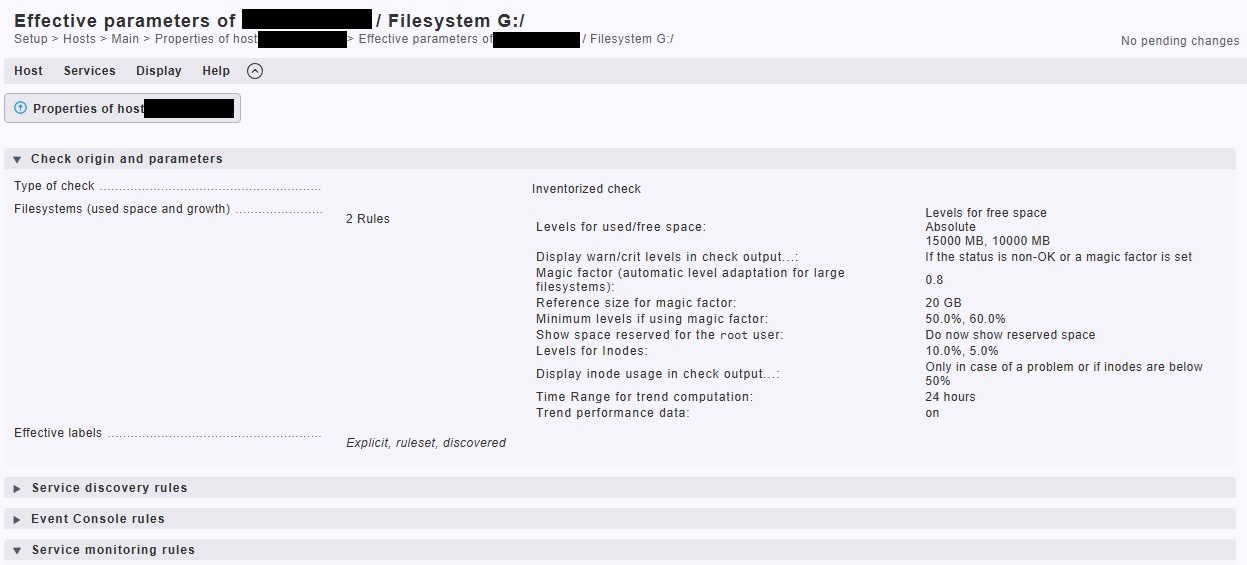
I am pretty sure, that I have already ruled out your proposal 1 with the higher priority rule. I have 2 rules for “filesystem” - a global rule which goes by percentages and includes ALL hosts. And second rule which filters on a certain host with a certain service (mountpoint name) and goes with fixed values (MB). The second rule is is in position 0 and the first is in position 1. When I disable the fixed value rule, the output of the check goes back to percentage. So I am 99% sure, that I have the correct rule
As for your proposal 2 - I am not sure that I can follow you. I have looked up the “Effective parameters” and the look fine to me. But I am not sure, what is ment with “green match icon”.
I continued to play around with the threshhold value and found more oddities:
Values between 1 to 15000 (warn) and 1 to 10000 (crit) do all lead to the same output:
Used: 98.39% - 3.07 TiB of 3.12 TiB (warn/crit below 1.99 TiB/1.99 TiB free)
But this changes for:
15000 → 1.99
10000 → 1.99
150000 → 1.94
100000 → 1.96
1500000 → 1.56
1000000 → 1.87
But increasing the numbers even more, does not change the output any further.
this looks like a known interaction between the Magic Factor and absolute free space levels in Checkmk 2.2.
Even though your specific rule (position 0) is correctly matched in “Effective Parameters”, the Magic Factor configured in your global rule (position 1) can still interfere — because sub-parameters from multiple rules are merged. When the Magic Factor is active, it can override the absolute levels with its own levels_low fallback values.
Two things to try:
In your specific rule (position 0): Explicitly set the Magic Factor to 1.0 (= no scaling) and make sure “Minimum levels if using magic factor” is either disabled or set to non-critical values.
In your global rule (position 1): Make sure the Magic Factor checkbox is not applying to the host/mountpoint already covered by your specific rule — or disable it there entirely.
This exact bug (absolute free space levels ignored when Magic Factor = 1.0) was fixed in Werk #15908, released with 2.2.0p8. Since you’re on 2.2.0p47 the fix should be present, so the issue is most likely the sub-parameter merging between your two rules.
The problem it solves
A fixed threshold like 80% doesn’t work well across filesystems of very different sizes. On a 5 TB volume, 80% still means 1 TB free — no reason to panic. On a 20 GB system, 80% means only 4 GB free — an alert makes much more sense.
How it works
The Magic Factor (0.1–1.0) automatically scales WARN/CRIT thresholds based on filesystem size, relative to a configurable reference size (default: 20 GB).
Filesystems equal to the reference size → get the configured base thresholds (e.g. 80%/90%)
Filesystems smaller → get lower thresholds
Filesystems larger → get higher thresholds
Factor 1.0 = no scaling at all
Effect table (base: 80%, reference: 20 GB)
Factor
5 GB
10 GB
20 GB
100 GB
300 GB
800 GB
1.0
80%
80%
80%
80%
80%
80%
0.9
77%
79%
80%
83%
85%
86%
0.8
74%
77%
80%
86%
88%
90%
0.7
70%
75%
80%
88%
91%
93%
0.5
60%
72%
80%
91%
95%
97%
Key parameters (in Filesystems (used space and growth))
magic – the factor itself (0.1–1.0)
magic_normsize – reference size in GB (default: 20)
levels_low – floor values: the magic factor will never lower thresholds below this (default: 50%/60%)
Common pitfalls
Sub-parameter merging across rules – Checkmk merges parameters per sub-parameter, not per rule. If a global rule has Magic Factor enabled and a specific rule sets absolute levels, both rules contribute parameters to the final result. Fix: explicitly set magic = 1.0 in your specific rule, or exclude the host from the global rule.
Bug in CMK 2.2.0 (fixed in 2.2.0p8) – When Magic Factor was set to 1.0 and absolute free space levels were configured, the check used default parameters instead of the configured ones. Fixed in Werk #15908.
Display bug (fixed earlier) – Absolute levels (MB) were displayed as percentages when Magic Factor was active. Fixed in Werk #14318.
Recommended setup
One global rule: magic=0.8, normsize=20GB, levels_low=50/60%
Specific exception rules: activate only the needed sub-parameters + set magic=1.0 to neutralize the global factor
 Docs reference: